How to Update Your Radar Detector Firmware
For a Uniden R7 firmware update, use Uniden’s official R7 instructions and model-specific files. Check your installed version, prepare the required connection, and follow the completion steps before disconnecting.
On this page (8 sections)
- What should you check before a Uniden R7 firmware update?
- How do you update Uniden R7 firmware?
- Will the USB-C to RJ11 cord help with an update?
- Is firmware the same as the R7 database?
- What should you do after updating?
- Should you keep the R7 or consider the R4W?
- Which update mistakes should you avoid?
- Which Uniden R7 update option should you choose?
For a Uniden R7 firmware update, use Uniden’s official R7 instructions and model-specific files. Check your installed version, prepare the required connection, and follow the completion steps before disconnecting.
You don't need a new detector or a vehicle power accessory just to begin checking for an update. First identify whether you need firmware, camera location information, or help with a separate power or mounting problem.
What should you check before a Uniden R7 firmware update?
Check the exact model, installed version, and update requirements before downloading files. Similar model names and shared accessories don't make update procedures interchangeable.
Confirm the model on the detector itself. Record its installed firmware version using the method in Uniden’s instructions, then compare it with the available release information.
Start at Uniden’s official website to find R7 update help. Read the instructions alongside the download information so you know which files and equipment belong together.
Before starting, make a short preparation list:
- Your detector’s model and installed version.
- The release you intend to install and its stated changes.
- Any computer, operating system, software, driver, or cable requirements.
- The required power and connection sequence.
- The completion steps and support contact information.
Read release notes for changes that matter to your use. Don't expect every release to change alert behavior, add features, or solve a fault unless its notes say so.
Record settings you care about before proceeding, including alert preferences and any saved locations you may need to review. Check how the procedure handles them rather than assuming they will remain unchanged.
How do you update Uniden R7 firmware?
Follow the complete R7-specific procedure, including preparation and completion. The sequence below is a planning checklist; use Uniden’s instructions for the actual buttons, software, and connection order.
- Confirm that the available files name the R7.
- Compare your installed version with the release information.
- Read the full procedure before connecting anything.
- Prepare the equipment and downloads it requires.
- Connect and update the detector in the stated order.
- Wait for the completion indication described in the instructions.
- Perform any required restart and installed-version check.
Choose a stable work surface where the detector and computer can stay connected without cables being pulled. Allow enough time to finish before you need to leave.
Don't start an update in a moving vehicle or while rearranging the installation. Keep unrelated tasks, such as changing the mount or routing a power cord, for afterward.
A progress bar disappearing or the screen changing isn't enough to establish success. Use the completion message and checks described in the procedure.
What if the Uniden R7 firmware update connection fails?
Check the required cable, connection method, and computer setup before trying another update file. A cable that supplies power may not provide the connection needed to transfer firmware.
Compare your setup with the instructions one item at a time. Note whether the problem occurs before the detector is recognized, during file transfer, or after an apparent completion.
If an error appears, record its exact wording and the stage where it occurred. Follow official recovery guidance before disconnecting, restarting, or repeating the process.
Avoid repeated guesses with different files. Giving Uniden support your model, installed version, computer details, and error message makes the problem easier to narrow down.
Will the USB-C to RJ11 cord help with an update?
The Uniden USB-C to RJ11 Power Cord is for vehicle power. Its role here is helping you choose an everyday power connection, not establishing a firmware transfer method.
It suits an R7 driver who wants to use a vehicle USB-C port instead of arranging a mirror wiretap or fuse-box connection. Its 6-foot length gives room to route the cable, though spare length still needs securing.
Skip this cord if your only goal is to connect the detector to update software. Also skip it if you already have a suitable power setup and no reason to change it.
Before buying, check the location of your vehicle’s port and plan the route to the detector. Keep the cable clear of pedals, steering controls, airbags, and any area where it could snag.
Uniden backs this official cord with a 1-year warranty. Unplug it by holding the connector rather than pulling the cable, and avoid trapping it in trim or closing compartments.
Is firmware the same as the R7 database?
Firmware controls detector operation; the camera database supplies location information. Decide which you need based on the change you're trying to make.
The R7 includes preloaded red-light and speed camera locations and supports free firmware and database updates. Completing a firmware procedure doesn't establish that you also refreshed camera locations.
GPS false-alert memory is another separate function. The R7 can remember and mute common false alerts along regular routes, so don't confuse a saved mute location with a camera database entry.
If your concern is a recurring alert near a store, identify the alert type and review the relevant settings. If your concern is camera information, check the database procedure rather than assuming new firmware addresses it.
For a broader look at its features, see our Uniden R7 radar detector review. To compare the models, read Uniden R7 vs R8.
What should you do after updating?
Confirm the installed version and your preferred settings before returning the detector to daily use. Check each update you intended to complete rather than treating one successful operation as proof that everything is current.
If you recorded settings beforehand, compare them while parked. Review alert volume, display choices, and other preferences you use, following the manual for their names and functions.
Return the detector to a secure mount with an unobstructed view as directed by its manual. Make sure its cable doesn't pull against the connector or shift the unit.
Mounting and vehicle power are separate setup tasks. If you’re changing the installation too, read where to mount a radar detector and how to hardwire a radar detector.
Keep a note of the installed version and completion date for future troubleshooting. You can also record any setting changes, which helps distinguish a software change from a setup change later.
For routine care, keep connectors free of debris and follow the manual’s cleaning and storage guidance. Avoid spraying cleaner into ports or leaving loose cables where passengers can pull them.
Should you keep the R7 or consider the R4W?
Keep the R7 if it meets your needs; consider the R4W for its connected features. A routine update task alone isn't a reason to replace a working detector.
The R4W combines built-in GPS, Wi-Fi, Bluetooth, and R/TACH app support. It suits buyers who want those connection options and are willing to learn a separate model’s setup.
Its Auto Mute Memory can remember recurring false alerts, while programmable voice alerts let you tailor spoken notifications. Uniden also describes its K/Ka filtering as reducing false alerts from vehicle driver-assistance systems.
Skip the R4W if you're satisfied with your R7 and only need to maintain its software. Don't assume Wi-Fi or Bluetooth means a particular update method; confirm the R4W procedure before choosing it for that reason.
If you're still deciding, our radar detector buying tips can help you rank your needs. Focus on the features you'll use instead of treating every extra connection as essential.
Which update mistakes should you avoid?
Avoid wrong-model files, unclear completion, and unnecessary accessory purchases. These mistakes add confusion without helping you maintain the detector.
Don't borrow an R4W or another detector’s procedure because it looks similar. Match the model throughout the instructions, software, and downloads.
Don't change several things at once after updating. If you also alter filtering, mounting, and power, it becomes harder to work out why the detector behaves differently.
Don't mute an unfamiliar alert just to make the drive quieter. Learn what the alert means and review settings while parked before changing how the detector responds.
An update also doesn't change the limits of radar detection. Our guide to how radar detectors work explains why an alert isn't a promise of advance warning in every situation.
Which Uniden R7 update option should you choose?
For a Uniden R7 firmware update, choose the official files that match your model and intended change. Keep your existing detector if software maintenance is all you need.
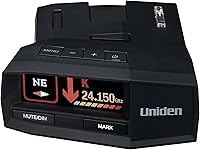
The R7 suits buyers who want directional information alongside alerts. Its front and rear antennas support directional arrows, and its multicolor OLED can show up to 4 signals at once.
Skip buying another R7 if you already have one and only need an update. Choose the USB-C power cord for a vehicle power need, or consider the R4W when its connected features match a separate buying goal.
The Uniden R7 review can help you decide whether its features still fit your driving. After the update, finish your physical setup with where to mount a radar detector or how to hardwire a radar detector.
Frequently asked questions
How do I update the firmware on a Uniden R7?
Use Uniden’s official R7 instructions and files that match your detector. Check the installed version, read the release information, and prepare the required equipment before connecting it.
Follow the update through its completion steps, including any restart or version check, before returning the detector to your vehicle.
Does the Uniden R7 need firmware updates?
The R7 supports free firmware and database updates, but check its installed version before deciding what it needs. Compare that version with Uniden’s available release information and read what changed.
An update is worth considering when its stated changes apply to your detector or address a problem you have.
Can I use the R7 while it is updating?
Leave the R7 unused during its update procedure and keep the required connections in place. Choose a time when you can complete the process without needing the detector for a drive.
Disconnect or restart it only when Uniden’s instructions say to, rather than judging completion by elapsed time.
Is firmware the same as the camera database?
No. Firmware controls how the detector operates, while the camera database supplies location information for camera alerts.
The R7 supports free updates for both, but completing one does not establish that you completed the other.
Check the official instructions for the files, steps, and completion checks each requires.